

Connect an AI tool
On the Multiply plan you can connect an AI tool, such as Claude, Cursor or n8n, to your EquipEngine account and work with it in plain language:
- “Who on the greeter team is overdue on Safe Sanctuary?”
- “How is Jordan doing with her training?”
- “Assign Greeter Basics to the new greeters cohort, due the end of the month.”
- “Draft a four-lesson course from these notes.”
There are two ways to connect, and either way you decide what the AI can see and do.
claude.ai and ChatGPT: connect with a sign-in
- Go to Settings → API. Under Use with AI tools, copy the MCP URL.
- In claude.ai: Settings → Connectors → Add custom connector, paste the URL, then Connect. (On a Team or Enterprise plan, an owner adds the connector first; then each person connects.) In ChatGPT: in developer mode, add a custom app or connector with the URL and OAuth sign-in. ChatGPT's menus and which plans allow this change often; see OpenAI's help if you can't find it.
- Sign in to EquipEngine as an admin of your church. You'll see which app is asking, and choose what it can do: reading people, courses, enrollments and flows is on; assigning, inviting and building drafts are off until you turn them on.
- Click Allow. Every admin of your church is emailed that the app was connected.
No key to create or copy. It also works in the Claude desktop and mobile apps, which share claude.ai's connectors. Only admins can connect an app, and each admin connects their own.
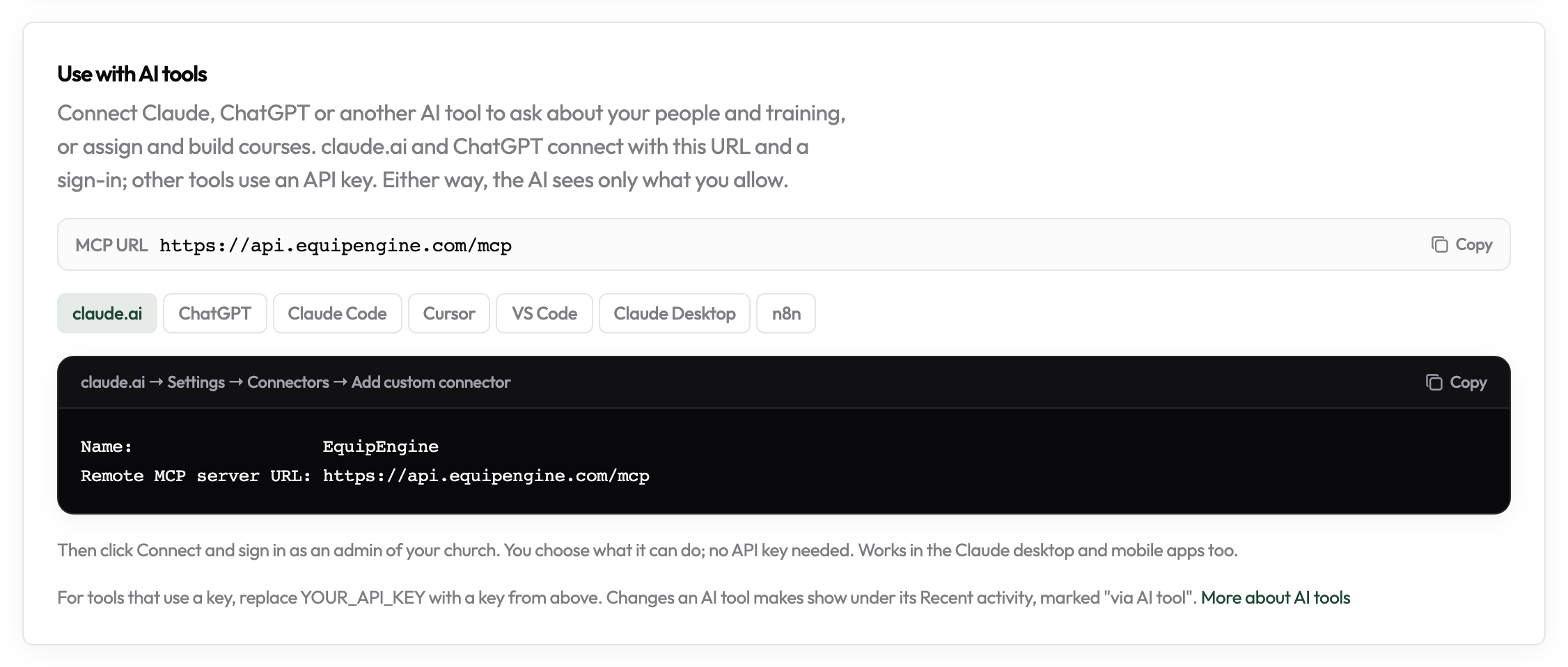
Other AI tools: use an API key
Claude Code, Cursor, VS Code and n8n connect with an API key, the same kind your other integrations use. (Claude Code can also use the sign-in above.)
- On Settings → API, click New API key and name it after the tool, for example “Cursor (Pastor Dan)”.
- Turn on only what it needs. To ask questions about people and training, give it People and Enrollments. Add Assign and unassign only if you want it to assign courses, and Build draft courses only if you want it to write drafts.
- Copy the key (it's shown once), pick your tool under Use with AI tools, and paste the key where the setup says
YOUR_API_KEY.
Use a separate key for each person and tool, so you can see what each one did and revoke one without breaking the others. Any other tool that supports MCP (the Model Context Protocol) works too: point it at the MCP URL and send the key as a Bearer token.
What the AI tool can do
- Only what its key allows. A key that can only read never shows the AI a tool that changes anything.
- Look things up: people, groups and cohorts, courses and their outlines, flows, who is assigned what, a person's progress, and who is overdue.
- Make changes, if allowed: assign published courses and flows, unassign a course from someone, invite people, and create or edit draft courses. It can't publish, delete or change settings.
- Answer “how do I…” questions from this help center.
Assigning, unassigning and inviting send emails or change who has access, so they're marked for AI tools to ask you before running them. Most tools do; some automation tools (like n8n) don't, so check your workflow before turning it on.
Seeing what it did
Apps connected with a sign-in are listed under Connected AI apps on Settings → API: which app, who connected it, what it can do and when it was last used. Every change an AI tool makes is listed under that connection's (or key's) Recent activity, marked via AI tool. Assignments it makes show in the course's Assignments tab like any other.
Turning it off
Disconnect the app, or revoke the key, on Settings → API. It stops working at once. A connected app that isn't used for 90 days lapses on its own; keys expire (after a year by default), and admins are emailed before they do.
Building something yourself? The API reference lists every tool and the permission each needs.