

Planning Center Integration
EquipEngine connects with Planning Center to pull in your existing groups, teams, and people lists — so you can assign training without managing a separate roster. It also writes back to Planning Center Workflows when training milestones are reached, closing the loop between your church management system and your training.
How to connect
- Click Planning Center in the sidebar, under Setup. Until you connect, the page says Not connected.
- Click Connect Planning Center. Planning Center opens in a new browser tab.
- Sign in with a Planning Center Organization Administrator account and approve EquipEngine's access.
- You're sent back to the Planning Center page with a "Planning Center connected successfully" message. The status line at the top of the Overview tab reads Everything's in sync once the first sync finishes.
If the connection fails, the page lists a few things to try: sign in to Planning Center as an Organization Administrator, allow pop-ups for EquipEngine, or try again in a private browser window.
The Planning Center page
The page has a Sync now button at the top and three tabs: Overview, Settings and Sync history. On a narrow screen, tabs that don't fit move into a More menu.
Overview
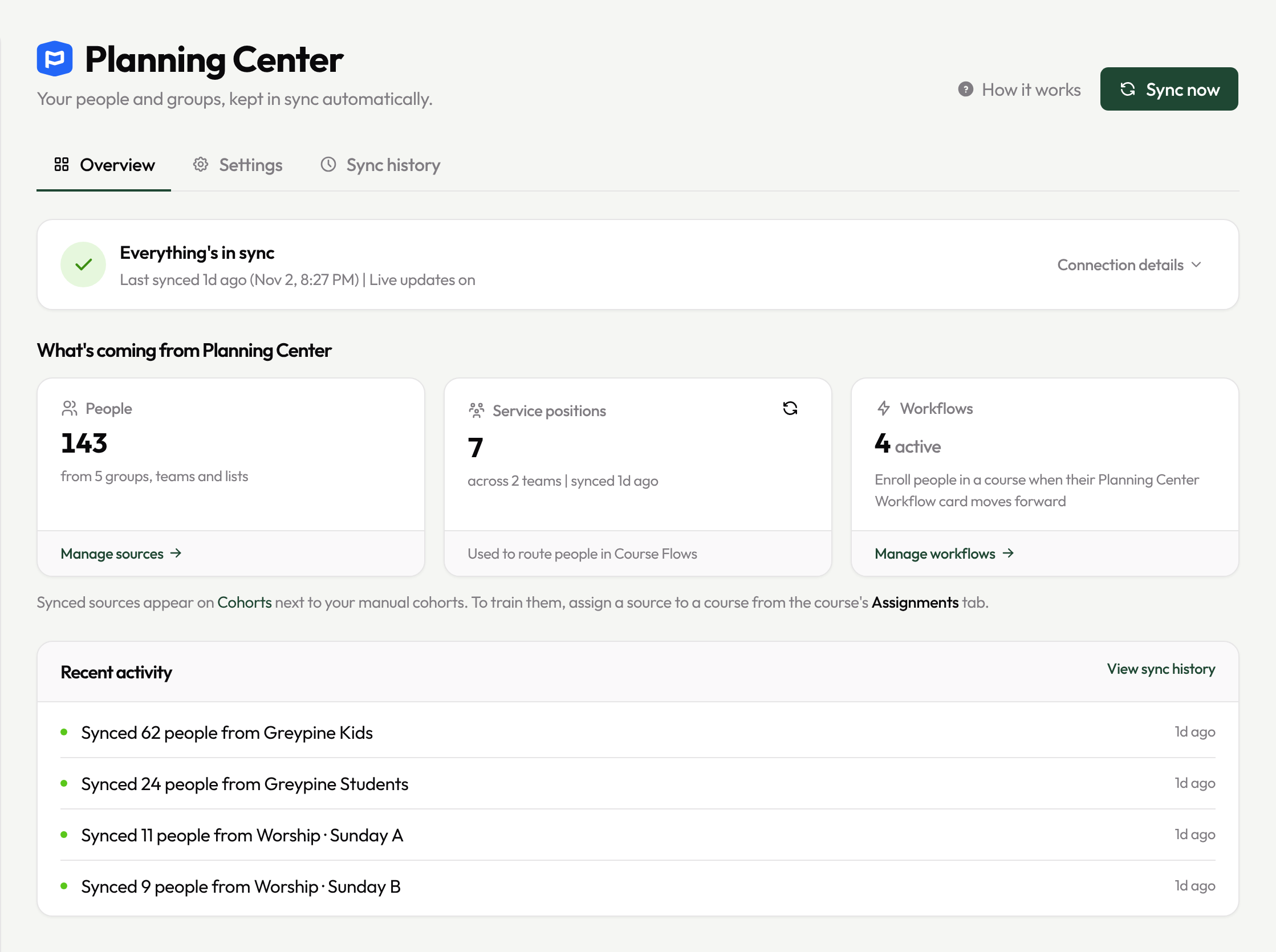
- Status line. One line that shows the most serious thing going on, with the button that fixes it:
- Everything's in sync: when the last sync ran and whether live updates are on. Open Connection details to see which Planning Center account connected and the org ID.
- Syncing with Planning Center…: a sync is running. Larger churches can take a minute.
- The last sync didn't finish: click Try again. If it keeps failing, reconnect.
- Planning Center setup isn't finished: click Repair connection. You don't have to sign in again.
- Live updates aren't coming through: click Restart live updates. Until then, Workflow enrollments wait for the hourly check.
- Planning Center is disconnected: Planning Center stopped accepting our access. Click Reconnect Planning Center.
- Needs your attention. If people came in from Planning Center while invitations are off, a card says how many don't have accounts yet. See who opens them on the People page, and Turn on invitations switches invitations on (with Undo).
- What's coming from Planning Center. Cards for People (how many people come from the groups, teams and lists you've assigned, with Manage sources), Service positions (on Equip and above, with its own sync button) and Workflows (how many mappings are active, with Manage workflows).
- Recent activity. The latest syncs, with a link to the full Sync history.
Settings
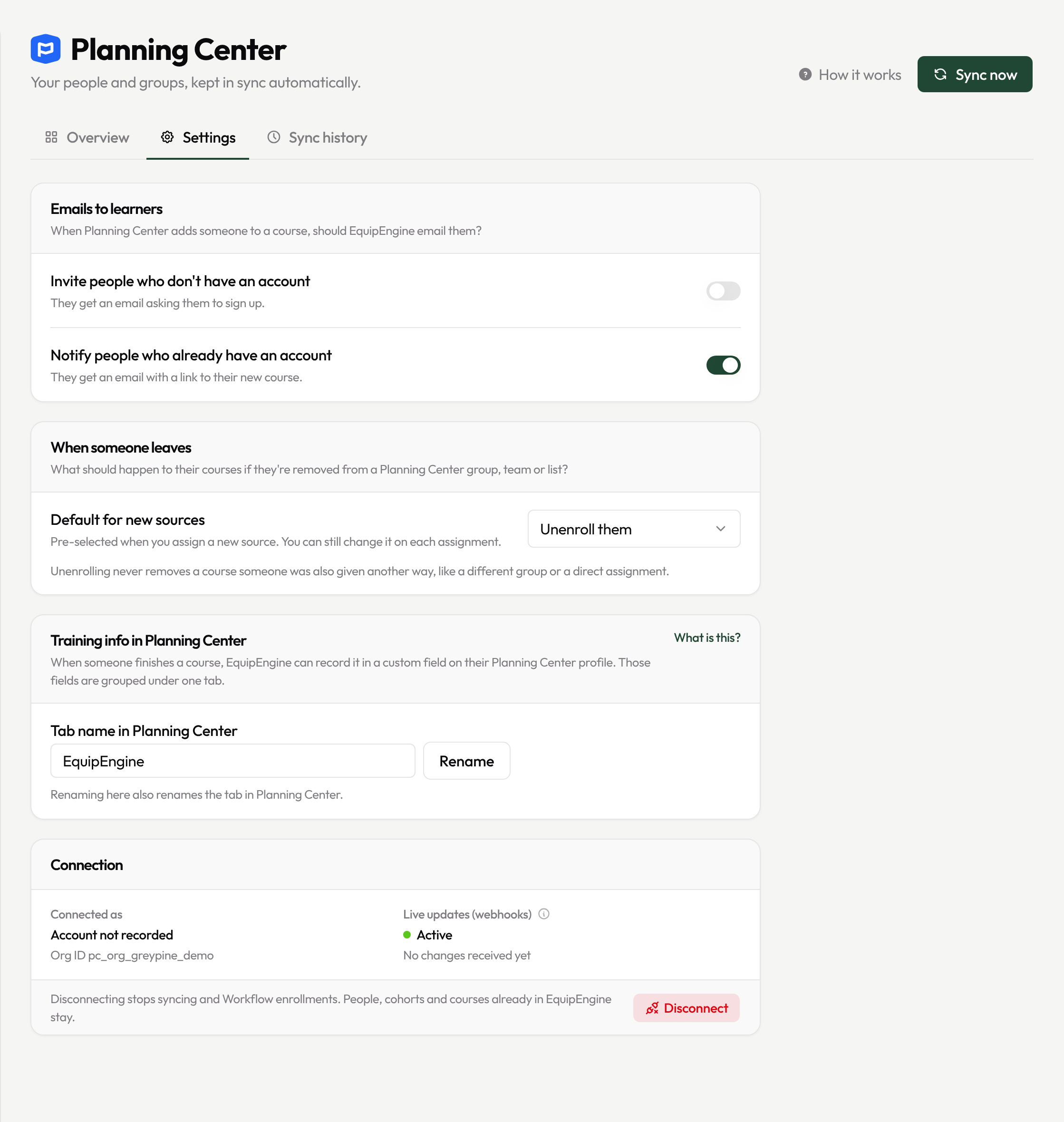
- Emails to learners: whether people Planning Center adds get an email. See Emails to learners.
- When someone leaves: the default for new sources. See below.
- Training info in Planning Center: the name of the custom field tab. See The custom field tab.
- Connection: who connected and whether live updates are working, with Repair connection or Reconnect Planning Center when needed, and Disconnect.
Sync history
A dated list of recent syncs for the sources you use.
Permissions requested
Connecting your church asks Planning Center for three scopes: People, Groups and Services. When volunteers sign in with Planning Center instead of a password, that sign-in asks for People and Groups and is used only to read who they are (their name and email addresses).
What EquipEngine reads
- People: names, email addresses and Planning Center IDs of the people in the sources you use, and your organization's name and time zone
- People lists: your saved lists and their categories, and the people on each list you assign
- Workflows: your workflows, their steps, and the cards in mapped workflows (to see who entered a step)
- Custom fields: your tabs and field definitions (to pick a completion field), and the current value of the configured field on a learner's record
- Groups: your groups, their group types, and their members, including which members are group leaders
- Services: service types and their teams, the people on each team, each team's team leaders, the team's positions, and which positions people were scheduled into on recent plans (used to route training by position)
- Webhooks: the webhook subscriptions EquipEngine created in your account, so it can check and repair them
What EquipEngine writes to Planning Center
EquipEngine writes only what you set up on a course or a Workflow mapping:
- Workflow card notes: a note when someone is enrolled from a Workflow step and another when they finish the course, if notes are on for that mapping
- Workflow step advances: when someone finishes, their card is promoted to the next step or the step is skipped, depending on the mapping's setting
- Custom field data: the completion date or fixed value you chose, written to the configured field on the learner's People record (created, or updated if it already has a value)
- Custom field definitions: a new field, when you click + Create a new field in Planning Center
- A custom field tab: the EquipEngine tab that holds fields we create, created the first time you make a field and renamed when you click Rename
- List runs: before syncing a People list that hasn't finished running, EquipEngine asks Planning Center to run it so the results are complete
- A webhook subscription: one subscription to Workflow card updates, so assignments happen as soon as a card moves. If it goes missing or out of date, clicking Restart live updates at the top of the Planning Center page replaces it. Disconnecting deletes it.
EquipEngine never deletes people, groups, teams, lists, workflows or cards in Planning Center, and never changes anyone's name, email or other profile details.
What gets synced
- Groups — Small groups and communities from Planning Center Groups
- Teams — Volunteer teams from Planning Center Services
- Lists — Saved People lists from Planning Center People
Groups and Services teams are included on Equip and above; every plan can use People lists.
Each of these is what EquipEngine calls a PC source. You assign courses to a PC source directly from a course's Assignments tab; you don't need to copy it into a cohort first. See Assigning Courses for the full assignment flow.
Emails to learners
When a synced source includes people who don't yet have an EquipEngine account, accounts are created for them automatically. Whether anyone gets an email is set on the Planning Center page's Settings tab, under Emails to learners:
- Invite people who don't have an account: they get an email asking them to sign up. When it's off, they wait on the Pending invites tab of the People page until you send them, and the Overview tab shows how many are waiting.
- Notify people who already have an account: they get an email with a link to their new course.
Turning invitations on only emails people Planning Center adds from then on. To invite the people already waiting, click Send all unsent on the Pending invites tab.
Sync behavior
- Groups, teams and lists sync every 6 hours in the background. Members added or removed in Planning Center are reflected in EquipEngine on the next sync.
- Workflow cards arrive live: Planning Center tells EquipEngine the moment a card moves, so enrollments happen right away. If live updates stop, Workflows are still checked every hour.
- Service positions sync on their own schedule. Use the refresh button on the Service positions card to sync them now.
To sync everything immediately, click Sync now at the top of the Planning Center page. To sync one source, open its ⋮ menu on the Cohorts page and choose Sync from Planning Center.
Where synced sources show up
Every PC source feeding at least one course assignment appears on the Cohorts page next to your manual cohorts, labeled PC Group, PC Team or PC List. Expand one to see its members. It has the same toolbar as a manual cohort: Search members… filters by name or email, and Manage leaders is on the right.
Planning Center cohorts are read-only in EquipEngine. There's no Add people and no remove button, because membership comes from Planning Center: change it there and the next sync brings it over. Leaders from Planning Center work the same way (see Team Leaders).
The What's coming from Planning Center cards on the Overview tab show the totals: how many people are coming from Planning Center, your Service positions, and your active Workflows. To change or remove an assignment, open the course's Assignments tab.
When someone leaves: the default for new sources
On the Planning Center page, the Settings tab has a When someone leaves section with a Default for new sources choice. It pre-selects the "When a member leaves this source" radio every time you assign a PC source to a course or a flow:
- Unenroll them (the default) — fits most volunteer/serving contexts where access should follow active team membership.
- Keep them enrolled — fits onboarding, discipleship, and any course where finishing matters more than current team membership.
You can always override the default per assignment when you create it, so this is just about which radio is checked when the dialog opens.
Planning Center Workflows
Workflows are the deepest part of the integration. You can connect a PC Workflow step to a course in EquipEngine, so that:
- When someone enters the workflow step, they are automatically assigned the linked course in EquipEngine
- When they complete the course, their workflow card is updated and can be moved to the next step automatically
This is the intended primary use case — training flows become part of your onboarding and discipleship workflows in Planning Center, with no manual tracking required on either side.
Connecting a Workflow step to a course
There are two places to do it:
- From the course: open the course's Overview tab, find the Planning Center integrations card, and click Configure a workflow under Workflow integration. Pick the workflow and step, and choose what happens to the card when someone finishes.
- From the Planning Center page: on the Overview tab, click Manage workflows on the Workflows card. The Workflow mappings page lists every connection in one place; click Add mapping to create one.
Workflow automation is included on Equip and above.
Don't see your workflow?
The workflow list comes straight from Planning Center when you open the page. If you made a workflow in Planning Center after that, click Sync workflows under the Workflow picker in the New mapping drawer. The list refreshes and anything you've already picked stays in place.
If it still isn't there:
- Check who can see it. EquipEngine sees the same workflows as the person who connected Planning Center. If that workflow isn't shared with them in Planning Center, share it with them, then sync again.
- Check the connection. If the drawer says Couldn't load workflows from Planning Center, open the Planning Center page and follow the status message at the top, such as Reconnect Planning Center or Repair connection.
Updating a PC custom field on course completion
You can configure any course to automatically write a value to a custom field on a learner's Planning Center person record when they complete the course. This is useful for tracking milestones like "New Member Class Done," recording the completion date, or feeding any downstream automation you have in PC.
Requirements
- Your tenant must be connected to Planning Center (see How to connect above).
- The learner must have a Planning Center identity linked to their EquipEngine account. This happens automatically when they sign in via Planning Center OAuth, or when their email is matched during a sync.
Setting it up
- Open the course you want to configure.
- On the course's Overview tab, find the Completion field section of the Planning Center card (visible when PC is connected) and click Configure a field.
- Choose a custom field from the dropdown — it loads your org's existing fields from PC. Or click + Create a new field in Planning Center to create one without leaving EquipEngine. Pick the new field's type before clicking Create: Date if you want to write the completion date, or Text for a fixed value. EquipEngine only writes a completion date to a Date field. New fields are placed in a custom-field tab in PC (see The custom field tab).
- Choose what value to write:
- Fixed text — the same value every time (e.g. "Completed" or "New Member Class")
- Completion date — the date the learner finished, in YYYY-MM-DD format
- Click Configure mapping.
Which values you can choose depends on the field's type: Completion date needs a Date field, and Fixed text needs a Text field. If the option you want is greyed out, pick or create a field of the matching type.
The custom field tab
In Planning Center, custom fields on a person's profile are organized into tabs. A tab is not a field itself — it's a labeled group that can hold many custom fields, the way a folder holds files.
When you create a field from EquipEngine, we put it in one tab so everything we added is easy to find and tidy up. The tab is called EquipEngine by default, and it's created the first time you make a field. Fields you already had in other tabs are never moved.
- Renaming the tab: on the Planning Center page, open the Settings tab, change Tab name in Planning Center and click Rename. The tab is renamed in Planning Center as well, and all of its fields stay in it.
- If Rename doesn't work: Planning Center may require manager-level permissions in People to change tabs. Ask someone with that access to reconnect Planning Center, or rename the tab directly in Planning Center — we'll keep using it.
- Renaming it in Planning Center instead: that works too. We remember which tab is ours, so we won't create a second one.
What happens when a learner completes the course
As soon as the learner marks the final lesson complete, EquipEngine queues a write-back job. Within seconds, the configured field on their Planning Center person record is updated. If the field already has a value, it will be overwritten.
The same happens when an admin uses Mark as complete for a learner on the course's roster.
Learners without a linked Planning Center identity are silently skipped — no error, no interruption to their course experience.
Syncing past completions
Write-back only happens at the moment someone completes the course. If learners finished the course before you configured the field, their Planning Center records aren't updated automatically. To fill them in:
- Under the configured field in the Completion field section, click Sync past completions. The link shows how many learners it will update, and it only appears when there's at least one.
- Confirm in the dialog.
EquipEngine writes the field for every learner who has completed the course and is linked to Planning Center. With Completion date, each learner gets the date they actually finished, not today's date. Updates usually land within a minute.
- Safe to repeat: learners who were already synced get the same value written again, so running it twice does no harm.
- Overwrites existing values: anything already in that field for these learners is replaced, including values someone entered by hand in Planning Center.
- After changing the field or value: run a sync to bring past completers in line with the new setup. The old field keeps whatever was written to it.
Editing or removing the configuration
From the same Completion field section on the course page, click the pencil icon to change the field or value, or the remove icon (×) to stop updating the field entirely. Removing the configuration does not change any values already written to Planning Center.
Disconnecting
To revoke access, open the Planning Center page, go to the Settings tab, and click Disconnect on the Connection card, then confirm. This revokes EquipEngine's access at Planning Center, deletes its webhook subscription, and removes the stored tokens from EquipEngine. Deleting your organization does the same. You can also revoke access directly from your Planning Center connected apps page.
Disconnecting stops syncing and write-back. Existing member accounts and assignments are preserved — they're not deleted — but they will no longer update from Planning Center, and course completions will no longer write back. You can reconnect anytime; sync resumes from where it left off.
Planning Center is a registered trademark of Ministry Centered Technologies. EquipEngine is not affiliated with or endorsed by Planning Center.