

Cohorts
A cohort is a manual group of members you create and maintain inside EquipEngine. Use cohorts when you have a grouping that doesn't live in Planning Center — a specific training class, a group of new hires, or a seasonal volunteer team.
If your group already lives in Planning Center as a Group, Team, or List, you don't need to mirror it here as a cohort — assign the course directly to the PC source instead. See Assigning Courses for the full picture of all four assignment targets.
The Cohorts page
Cohorts in the sidebar lists your manual cohorts and the Planning Center sources you've assigned courses to, side by side. Each row is labeled Manual cohort, PC Group, PC Team or PC List, with its member count. Use Search cohorts… at the top to find one by name.
Click a cohort to expand it. Every cohort has the same toolbar: Search members… on the left filters its members by name or email, and the cohort's actions sit on the right. If a manual cohort has invitations out, Members and Pending tabs appear in front of the search box.
- Manual cohorts have Add people, a remove button on each member, and Delete cohort… in the ⋮ menu.
- Planning Center cohorts are read-only: there's no Add people and no remove button, because their members come from Planning Center. Change membership in Planning Center and the next sync brings it over, or choose Sync from Planning Center in the ⋮ menu to pull it now. A Planning Center cohort with no matched members yet explains that people with EquipEngine accounts appear after a sync.
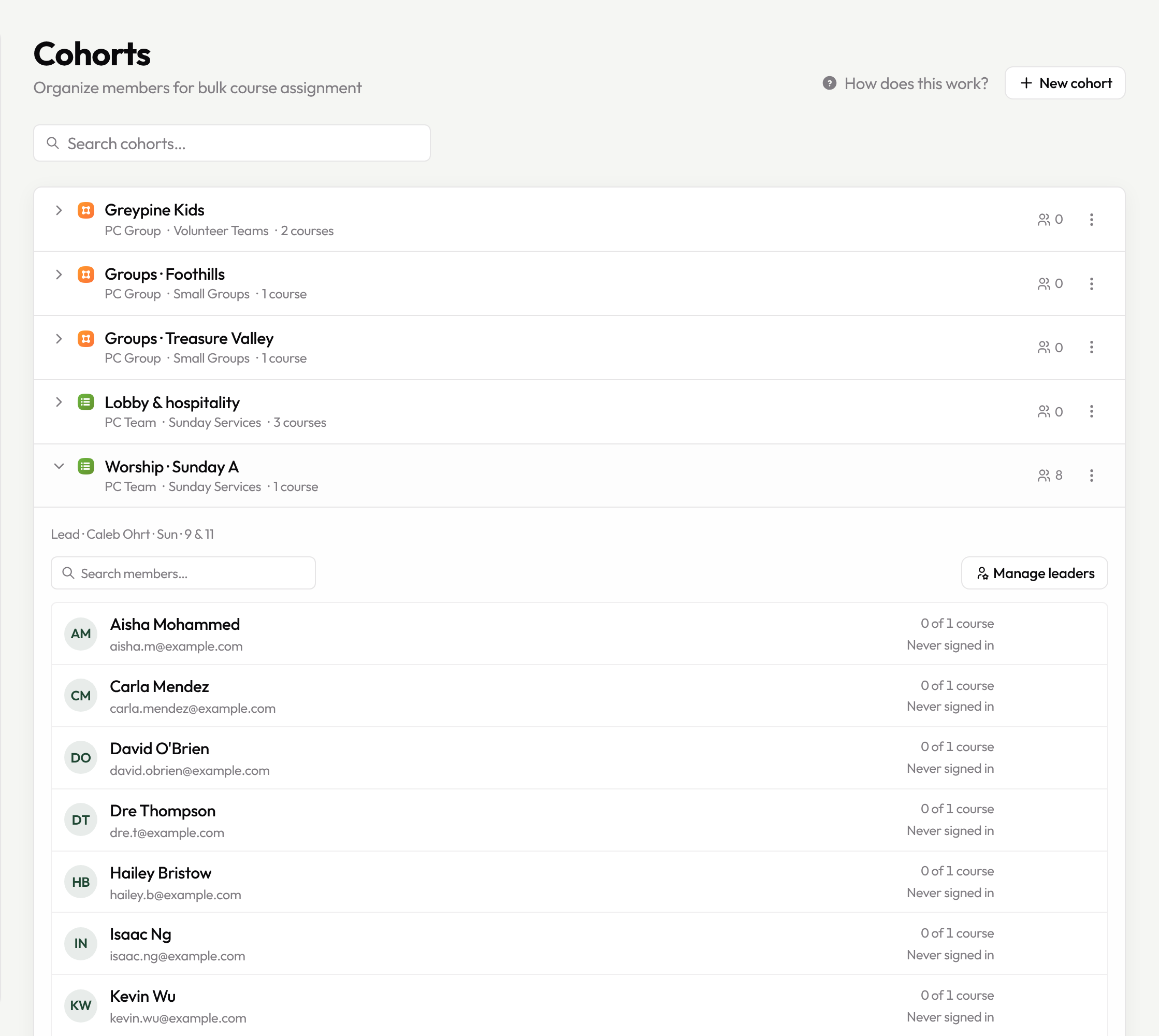
Both kinds have View courses and Assign to course… in the ⋮ menu. On Equip and above, admins also get Manage leaders.
Creating a manual cohort
- Go to Cohorts in the sidebar.
- Click New cohort → Create manually and give it a name.
- Open the cohort and use Add people to add members by name, email, or CSV upload.
Adding and removing members
Expand a manual cohort and use Add people to invite or add someone. To remove a member, hover their row, click the remove button (×) and confirm. Changes take effect immediately — any course assignments already linked to this cohort will update enrollment accordingly.
When you add someone by email who isn't on your team yet, EquipEngine invites them and queues their cohort membership. They join the cohort the moment they sign in.
Importing a snapshot from Planning Center
If you want a one-time copy of a Planning Center group's current members (without any ongoing sync), use New cohort → Snapshot from Planning Center. EquipEngine creates a manual cohort seeded with that group's members at the moment of import. Future PC changes don't flow through — that's the whole point: snapshot imports are static. If you want ongoing sync, assign the course directly to the PC source instead of importing a snapshot.
Using cohorts for course assignment
When you assign a course to a cohort:
- Every current member of the cohort is enrolled immediately.
- Anyone added to the cohort later is automatically enrolled in the assigned course.
- If a member is removed from the cohort, their existing enrollment is preserved. Completion history is never deleted.
To assign a course to a cohort, open the course → Assignments → Assign, pick the Cohort radio, and choose the cohort. See Assigning Courses for the full walkthrough.
Cohort leaders
On Equip and Multiply, expand a cohort and use Make leader on a member's row, or Manage leaders, to let someone follow its training under My teams. Leading doesn't add them to the cohort. See Team Leaders.