

Starting from a Template
You don't have to start from a blank page. EquipEngine has quick-start templates: ready-made courses and Flows for the training most churches run, written so you can adapt them to your church. Adding a template creates a draft that only admins and creators can see, so nothing reaches volunteers until you've made it yours and published it.
Add a course template
- Go to Courses in the sidebar and click Browse templates (on a phone, Templates). If you don't have any courses yet, you'll also find it on the empty Courses page.
- Pick a category at the top, or type in Search templates….
- Click a template to preview its modules and lessons.
- Click Add as draft. EquipEngine creates the course and opens it.
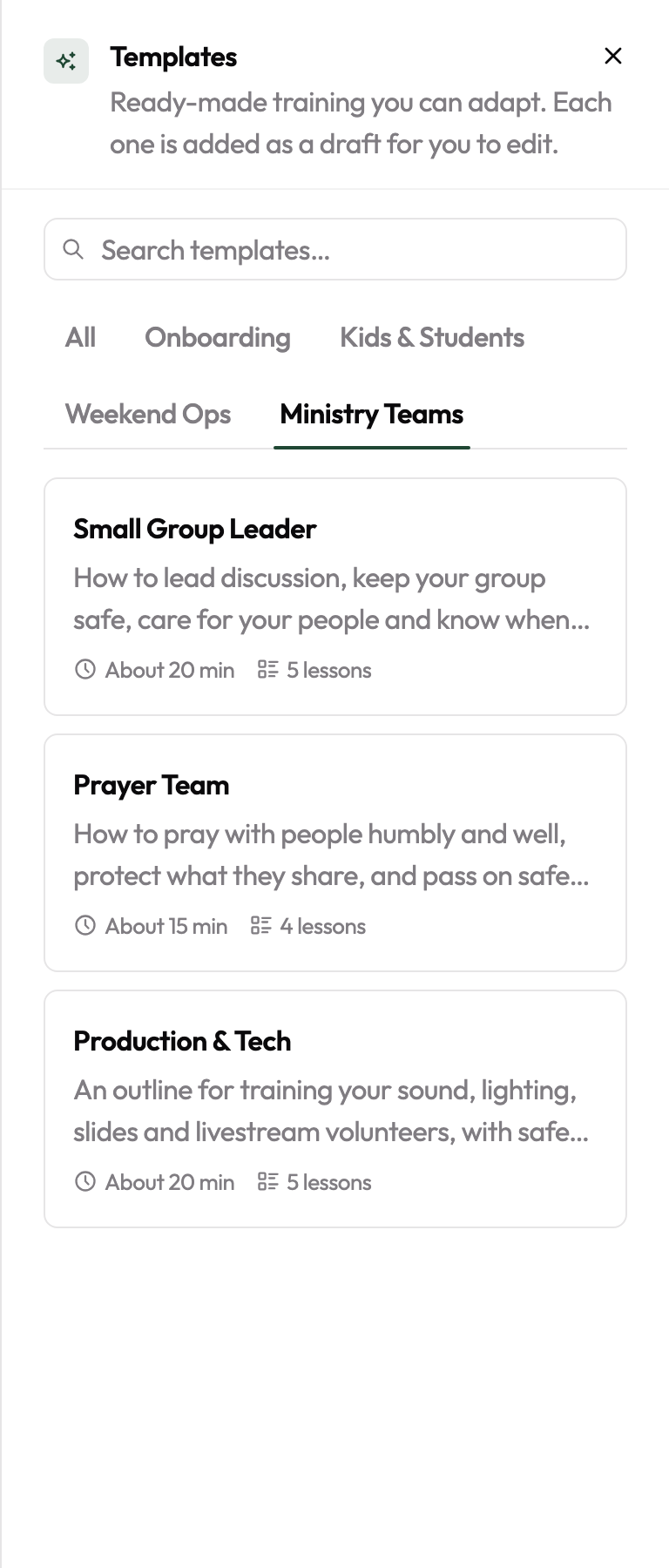
The course templates are:
- Onboarding: Welcome: Our Mission & Values; Volunteer Covenant & Code of Conduct.
- Kids & Students: Child Safety & Protection Policy; Kids Ministry Basics; Student Leader: Boundaries & Digital Communication.
- Weekend Ops: Weekend Ops Core; Greeter & Hospitality; Usher & Offering; Parking Team.
- Ministry Teams: Small Group Leader; Prayer Team; Production & Tech.
Already added a template? Its preview shows Already added, with Open to go to your copy and Add another copy if you want a second one, for example one per campus.
Course templates are on every plan. On Starter, drafts don't count toward your 5 active courses; publishing does.
Fill in the placeholders
Templates can't know your church's policies, people or schedule, so they leave marked spaces for you, like [[Your church: your application process and who reviews it]]. To help you find them all:
- The lesson editor highlights each placeholder.
- The course page shows how many are left to fill in.
- On the Content tab, a yellow warning icon marks each lesson that still has one.
- If any are left when you publish, EquipEngine asks you to confirm first.
Replace each one with your own details, or delete it if it doesn't apply. Add your own videos and PDFs the same way you would in any course; see Lessons & Modules.
Safety and policy courses are a starting point, not legal advice. Courses that touch safety, money or traffic (Child Safety & Protection Policy, Student Leader: Boundaries & Digital Communication, Weekend Ops Core, Usher & Offering and Parking Team) open with a placeholder asking you to check the course against your own policy, your insurer's requirements and your state's laws, then delete that line.
Add a Flow template
Flow templates are on Equip and above. Go to Flows in the sidebar and click Browse templates. There are three:
- New Volunteer Onboarding: the welcome and covenant courses, then a track for each team (kids, students, weekend ops, small groups, prayer, production & tech), a Shadow shift sign-off and a 30-day check-in sign-off.
- Kids Ministry Clearance: Child Safety & Protection Policy, Kids Ministry Basics, and a Shadow a Sunday sign-off. Its renewal cycle is turned on at 12 months.
- Weekend Ops Team: Weekend Ops Core, then a greeter, usher or parking track, and a First Sunday with a team lead sign-off.
Adding a Flow template also adds the courses it uses. If you already added one of those courses from its template, the Flow reuses your copy instead of making another, so your edits carry over. The rest are added as drafts.
The sign-off steps are things a volunteer does in person, which a leader marks complete. See In-person sign-offs.
In the Flows with team tracks, EquipEngine doesn't know which team each volunteer is joining, so they wait at the branch until you place them. Open the Flow's Progress tab and click Set track next to their name. You can also change the branch to sort people by their Planning Center team instead; see Branches & Tracks.
Publish
When you publish a Flow, the Publish dialog lists its draft courses so you can publish them at the same time. Each one shows how many placeholders it still has. Courses with placeholders left start unchecked, and anything you leave unchecked stays a draft.